Tips and Tricks
This is a collection of tips and tricks that can be useful for reducing different data, or to do it slightly differently from what is presented in the example.
Checking WCS of science frames
For GNIRS data, it is useful to check the World Coordinate System (WCS) of the science data. DRAGONS will fix some small discrepancy but sometimes the WCS are not written correctly in the headers causing difficulties with the sky subtraction and frame alignment.
We recommend running checkWCS on the science files.
$ reduce -r checkWCS @sci_images.list

======================================================================
RECIPE: checkWCS
======================================================================
PRIMITIVE: checkWCS
-------------------
Using S20200104S0075.fits as the reference
S20200104S0080.fits has a discrepancy of 2.00 arcsec
S20200104S0082.fits has a discrepancy of 2.01 arcsec
S20200104S0091.fits has a discrepancy of 2.01 arcsec
.
If any frames get flagged, like in the example above, you can still proceed
but after the reduction, do review the logs to check for any unusual matching
of the sources during adjustWCSToReference step, in particular the line
about the “Number of correlated sources”. If one of the highlighted frame
has a much lower number of correlated sources than the others, the algorithm
is unable to overcome the discrepancy; remove the file from the input list
and reduce again.
In many cases, where there are discrepancies ,``standardizeWCS`` will exit
with an error. If that occurs, add -p prepare:bad_wcs=fix or
-p prepare:bad_wcs=new to your call. This will ask standardizeWCS
to use header information about RA and Dec and offsets to try to fix the
WCS, or create a new WCS to the best of its ability.
This is very common with GNIRS for which the WCS can be accidentally inherited from the previous frame.
Note
From the API, run checkWCS like this:
checkwcs = Reduce()
checkwcs.files = list_of_science_images
checkwcs.recipename = 'checkWCS'
checkwcs.runr()
Getting Bad Pixel Masks from the archive
Starting with DRAGONS v3.1, the static bad pixel masks (BPMs) are now handled as calibrations. They are downloadable from the archive instead of being packaged with the software. There are various ways to get the BPMs.
Note that at this time there no static BPMs for Flamingos-2 data.
Manual search
Ideally, the BPMs will show up in the list of associated calibrations, the “Load Associated Calibration” tab on the archive search form (next section). This will happen of all new data. For old data, until we fix an issue recently discovered, they will not show up as associated calibration. But they are there and can easily be found.
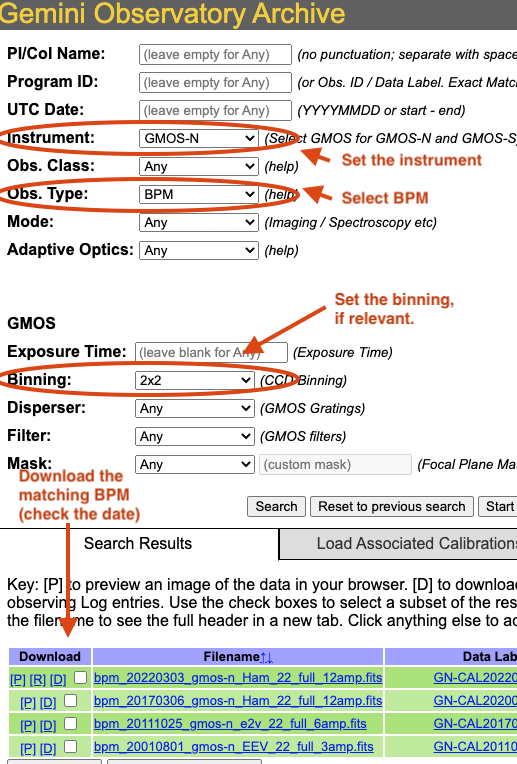
On the archive search form, set the “Instrument” to match your data, set the “Obs.Type” to “BPM”, if relevant for the instrument, set the “Binning”. Hit “Search” and the list of BPMs will show up as illustrated in the figure below.
The date in the BPM file name is a “Valid-from” date. It is valid for data taken on or after that date. Find the one most recent BPM that is valid for your date and download (click on “D”) it. Then follow the instructions found in the tutorial examples.
Associated calibrations
The BPMs are now handled like other calibrations. This means that they are also downloaded from the archive. From the archive search form, once you have identified your science data, select the “Load Associated Calibrations” (which turns to “View Calibrations” once the table is loaded). The BPM will show up with the green background.
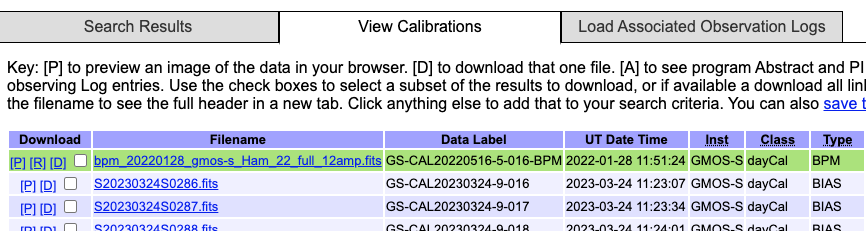
If a BPM does not show up, see if you find one using the manual search explained in the previous section, Manual search.
Bypassing automatic calibration association
We can think of two reasons why a user might want to bypass the calibration manager and the automatic processed calibration association. The first is to override the automatic selection, to force the use of a different processed calibration than what the system finds. The second is if there is a problem with the calibration manager and it is not working for some reason.
Whatever the specific situation, the following syntax can be used to bypass the calibration manager and set the input processed calibration yourself:
$ reduce @target.lis --user_cal processed_dark:N20120102S0538_dark.fits processed_flat:N20120117S0034_flat.fits
The list of recognized processed calibration is:
processed_arc
processed_bias
processed_dark
processed_flat
processed_fringe
processed_standard
Useful parameters
skip_primitive
I might happen that you will want or need to not run a primitive in a recipe.
You could copy the recipe over and edit it. Or you could invoke the
skip_primitive parameter to tell DRAGONS to completely skip that step.
Let’s say that you want the data aligned but not stacked. You would do:
reduce @sci.lis -p stackFrames:skip_primitive=True
write_outputs
When debugging or when there’s a need to inspect intermediate products, you
might want to write the output of a specific primitive to disk. This is done
with the write_outputs parameter.
For example, to write the sky subtracted frames before alignment and stacking, you would do:
reduce @sci.lis -p skyCorrect:write_outputs=True